Create a Live Event Page
A live event page is like if your event had its own app that no one needed to download. Keep everyone engaged, reduce downtime, and turn your event into an experience with a live event page.
Import Guest List
Have an event and RSVP page already? Import your guests here to create a live event page.
How to Export Guests From:
Create a New Event
Start fresh with Outvizor. Create your event page and invite guests.
How It Works
Import a Guest List or Create a New Event
Choose from one of the buttons above. If you're importing a guest list, you'll need to create an account first.
Go Live
When your event is supposed to start, click on the "Live Event Page ->" button from your event page, where you can check in and choose your live event settings. Once that's done, you'll see the "Go Live" button. Which will email all guests a link to the live event page.
Put the Screen View Somewhere People Can See It
Open the screen view on a laptop hooked up to a projector or TV, or just prop up a tablet. Guests check in by scanning the code on it and keep up with what's happening without you having to announce anything twice.
From your phone you can browse curated content to blast out, split everyone into groups, and run polls or games — it all lands on the screen as you go.
Put your event up on a projector or TV
Every live event page comes with a screen view made to be read from across the room. Open it on a laptop plugged into a projector or TV and leave it there — everything on it updates itself, so nobody has to stand around refreshing a page.
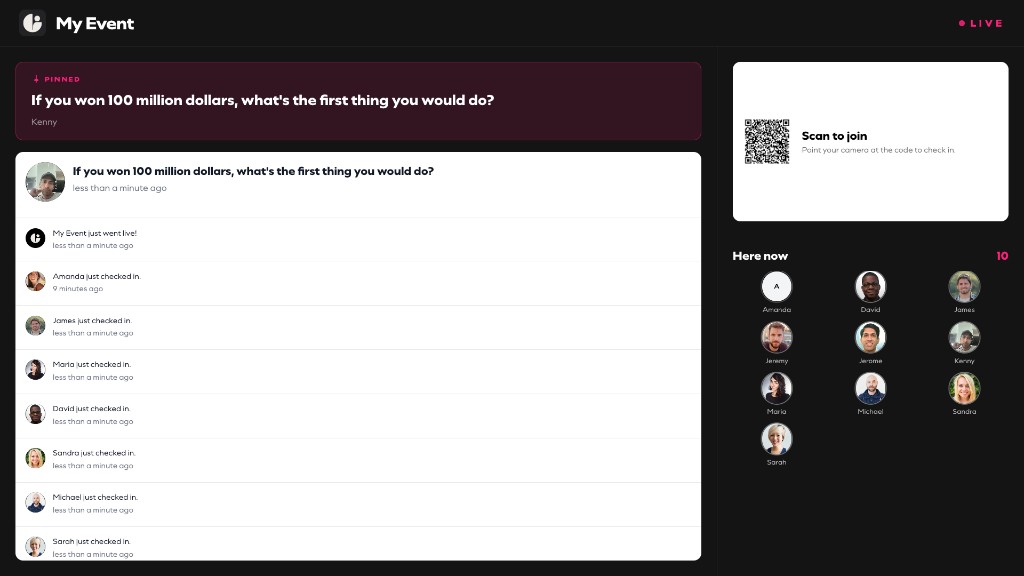
Guests join by scanning
The join code stays in the rotation, so anyone walking in late can check in without being handed a link.
Hold one thing up at a time
Pin a message from chat and it sits at the top of the screen for the whole room. Otherwise your most recent blast takes that spot.
Who’s here, as it happens
Faces appear as people check in. Split the room into groups and the screen lists everyone under the group they belong to.
Polls and scores take turns
Open a poll or start a game and it cycles into the spotlight beside the join code, with votes and scores counting up as they come in.
The whole room reads this page, so only what the whole room may see ever reaches it. Direct messages and anything you send to a single role stay off the screen.
Browse curated content
On your live event page, you can easily browse curated content to blast out to guests.
Chat & Messages
One timeline for the whole event. Post to the room, message someone privately, or send to a role only — anything that isn't for everyone gets boxed off and labelled, so nobody has to guess who saw it. Blasts notify everyone and keep a megaphone next to them.
Polls & Forms
Create interactive polls and collect responses from your attendees
Groups
Split the room up on the spot — at random, or by a role ratio like 1 teacher for every 3 students. You can also just let guests pick their own. Groups show up on the screen and can play as teams.
Games
Engage your guests with interactive games and activities
Design your experience
Adjust your settings to request a selfie upon check-in, allow guests to request an intro from you, and more.
Request Intro
Let your guests request an intro, you'll receive a notification of who they want to meet
Geofence
Restrict check in to those nearby the event location
Selfie
Request guests to take a selfie on check-in